Search and Navigation
To access to Search and Navigation, click on the top left corner dropdown menu in CMS and choose ”Search & Navigation”.
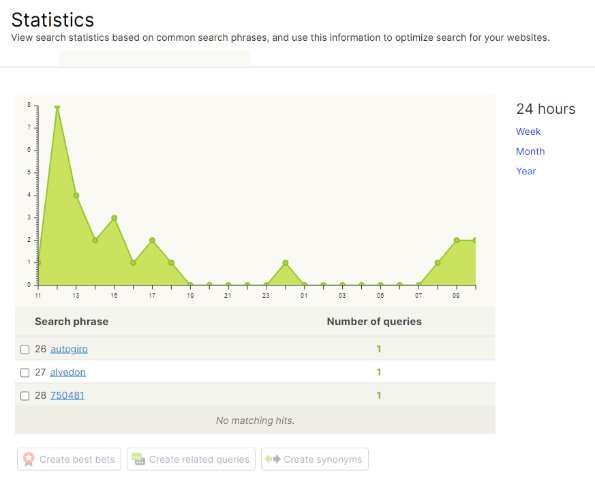
On the Search & Navigation home page, you can view website internal search results anf filter those by day, month or year.
Optimization
By clicking on the right hand menu ”Optimization” on Search and navigation main papge, you can add best bets and synonyms.
Best bests: customize which page will be listed first with a certain search word.
Synonyms: same search result will appear with synonyms.
Related queries and Autocomplete are not currently configured to use.
You can start testing the functionality in preproduction as the content has been copied from the production (see the next slide for instructions).
Best bets
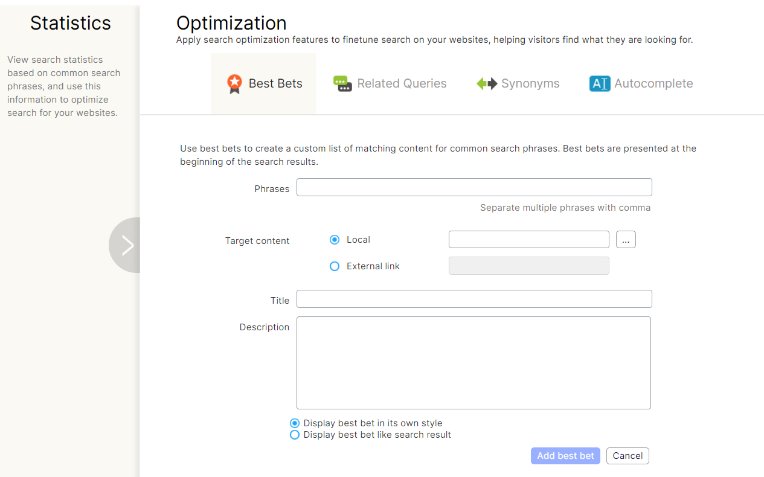
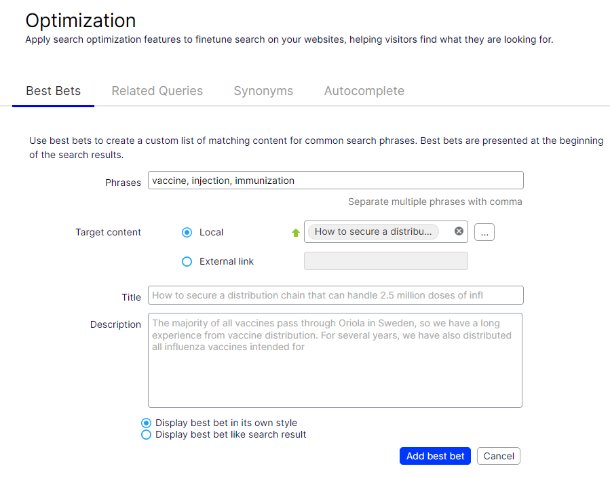
With Best bets you can prioritize a certain result to appear on the very top in global search.
Feed to ”Phrases” field the search words a site visitor might use.
At target content select the wanted particular page from the site to appear on the top by pressing the three dots on the right.
You can also change the ingress and title the user will see in the search results listing.
Finally press Add best bet and wait for some minutes for Optimizely to update the changes and then test it.
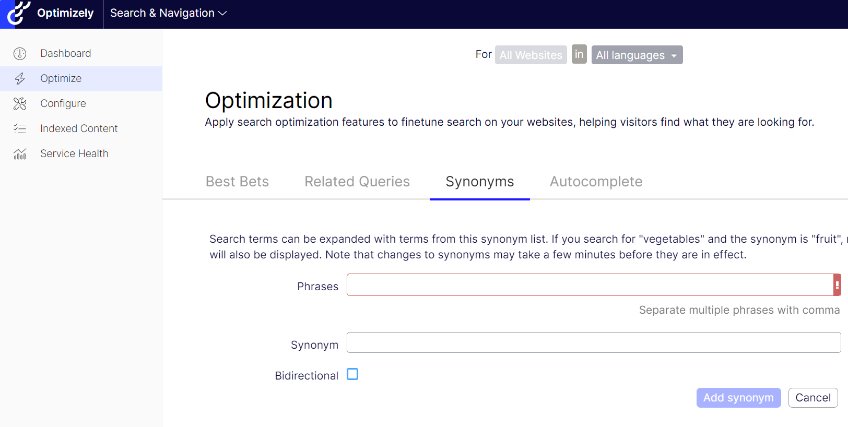
Synonyms
With synonyms it’s possible to optimize the global search functionality and improve the user experience.
By adding synonyms for the potential (and perhaps vital) search words, the users will most likely stay longer on the site as they’re able to find more relevant information.
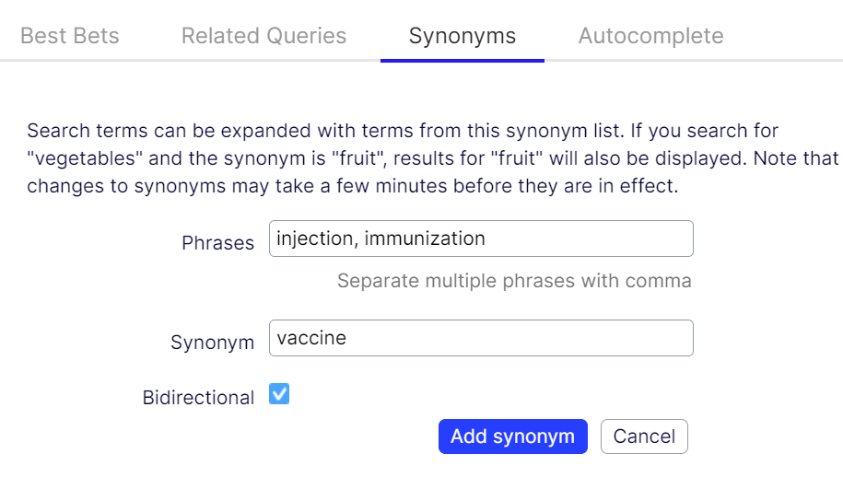
Feed the potential search words to ”Phrases” field, separate multiple words with comma (injection, immunization).
To ”Synonym” field feed the word that the user is already able to find search results (vaccine).
Select also the checkbox ”Biredirectional” to have the synonym results work in both ways.
Finally press ”Add synonyms”. Then wait for some minutes for Optimizely to update the changes and then test the added phrases in the global search.
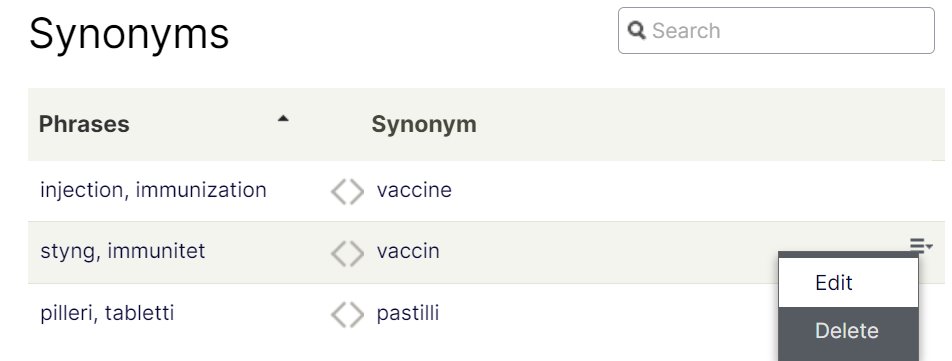
You can also add more words afterwards by clicking on the right ”hamburger” and press Edit.
Configure
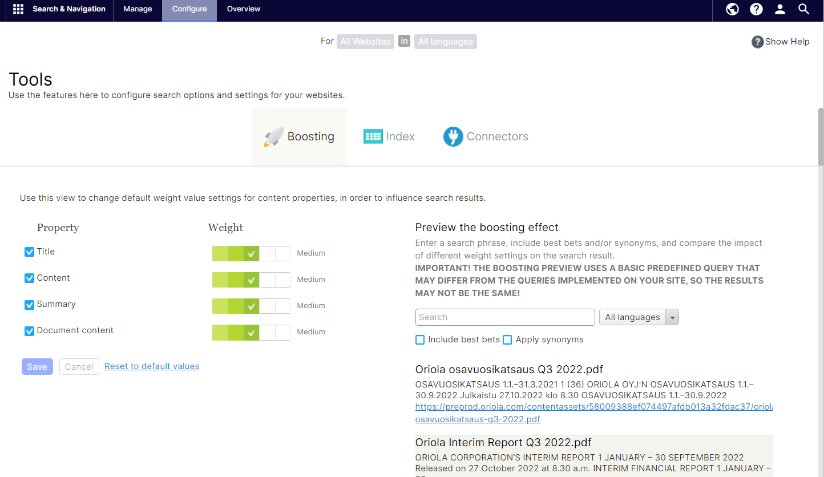
On the configure tab (upper menu tab), you can determine how much weight is given to different content in search results listing.
You can also choose, for example, that documents are not listed in the search results at all.
Configurations can be tested on the page’s right side search stimulation.