Content page
Write a short and descriptive Name for the page. Note that page name will be:
- shown in the navigation
- automatically generated as URL for the page (you can change it afterwards)
- Note! The page name isn’t the same as the heading for your page - you can add a longer heading in next phases.
There are the following options on Content page's settings:
- Display in navigation: If the page is shown in navigation, the level of page determines on which navigation it is shown
- Show left hand navigation: Is left navigation shown on the page or not.
There is an obsolete hero element and a new hero element. The new hero block has the same elements as the obsolete one, but it has also colour options. The colour you choose will be used on the CTA button and the color behind the image. Also it is possible to change the places of the image and text.
Properties for the hero:
- Image
- recommendations
- ratio: 4:3 - horizontal, 3:4 - vertical
- min. size 991/743 px: 743/991 px
- format: jpg, png, svg
- recommendations
- Title
- Text
- CTA link
- Block colour
- chosen colour will be used on the CTA button and on the colour element
- invert layout
- you can switch the places of the image and text
Content area is the place where you can add different kind of content by utilising blocks.
First content area is automatically set on the narrow area of the page.
Wide content area can be used e.g. for container blocks and prime blocks.
Related content is used for related content area of the page (see Related content block)
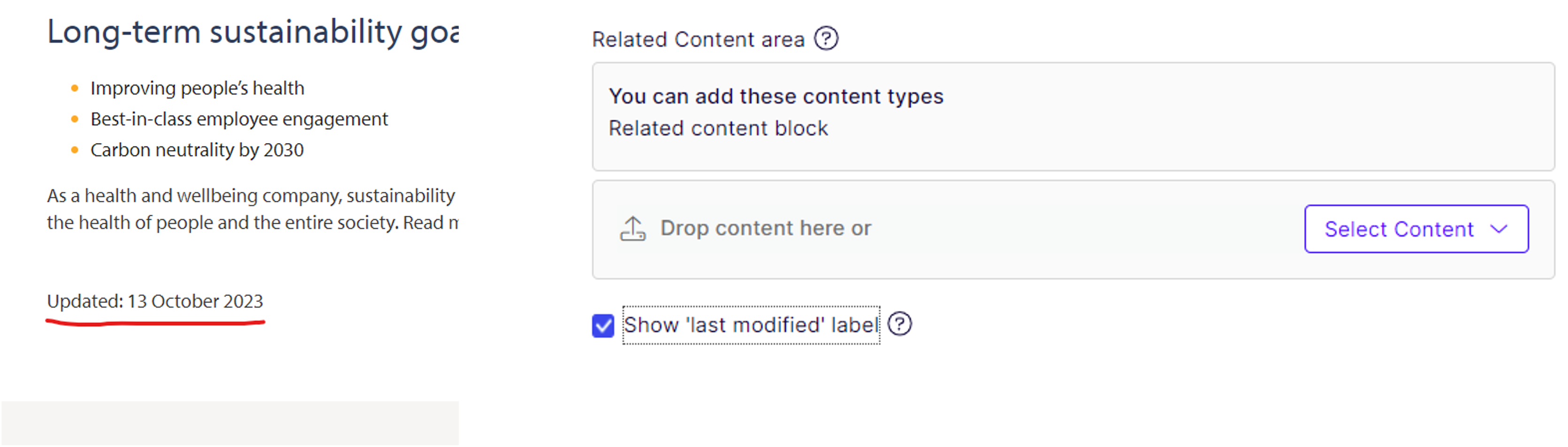
There’s also a possibility to add the updated date for the users to see when the particular page has been updated (e.g. Investor pages).
The date can be seen at the bottom the of the page.
Add the date by clicking the checkbox at the bottom the of page in CMS.
Note! Please keep in mind that if you only edit the block on the page (body text is in the editor block etc.), the date doesn’t update on the actual page.
- For that you need to update something on the actual page. You can go e.g. to Meta Info tab and press space on the keyboard on some of the text fields and then publish the page. The date should be updated now.
- The terms can be controlled in the different languages from Settings -> Translations in content tree.